Troubleshooting AKS Clusters with AI Agents and the AKS-MCP Server
In this workshop, you'll learn how to leverage AI agents to troubleshoot Azure Kubernetes Service (AKS) clusters using the AKS-MCP Server. By the end of this hands-on lab, you'll be able to configure the AKS MCP Server with AI agents and use natural language to debug AKS infrastructure—including clusters, nodes, and networks—as well as Kubernetes workloads and applications.
Objectives
By completing this workshop, you will be able to:
- Configure the AKS MCP Server with different AI agents:
- Use the AKS-MCP Server to understand AKS infrastructure and troubleshoot clusters.
- Use the AKS-MCP Server to troubleshoot Kubernetes workloads and applications.
Background Concepts
Before diving into the hands-on exercises, let's understand the key technologies that make AI-powered Kubernetes troubleshooting possible.
What is AKS-MCP Server?
The AKS-MCP Server is a Model Context Protocol (MCP) server that enables AI assistants to interact with Azure Kubernetes Service (AKS) clusters. It serves as a bridge between AI tools (like GitHub Copilot, Claude, and other MCP-compatible AI assistants) and AKS, translating natural language requests into AKS operations and returning results in a format AI tools can understand.
Key Capabilities
| Capability | Description |
|---|---|
| Cluster Discovery | Automatically discover and connect to AKS clusters in your subscription |
| Resource Inspection | Query pods, services, deployments, and other Kubernetes resources |
| Real-time Observability | Leverage Inspektor Gadget for live tracing of network traffic, DNS queries, and system calls |
| Azure Integration | Access Azure-specific resources like NSGs, load balancers, and managed identities |
| Troubleshooting | Diagnose connectivity issues, misconfigurations, and performance problems |
How It Works
┌─────────────────┐     ┌─────────────────┐     ┌─────────────────┐
│   AI Assistant  │────▶│  AKS-MCP Server │────▶│   AKS Cluster   │
│ (Copilot/Claude)│◀────│   (Bridge)      │◀────│   & Azure APIs  │
└─────────────────┘     └─────────────────┘     └─────────────────┘
The MCP server exposes a standardized interface that AI assistants use to:
- Discover available tools and capabilities
- Execute operations against your AKS clusters
- Return structured results for AI interpretation
What is an AI Agent?
AI agents go beyond traditional chat-based assistance by actively reasoning about problems, taking actions, and using tools to achieve goals autonomously.
Chat vs Agent: Key Differences
| Aspect | Traditional Chat | AI Agent |
|---|---|---|
| Interaction | Single question → single answer | Multi-step problem solving |
| Actions | Suggests commands to run | Executes commands directly |
| Context | Limited to conversation | Pulls live data from external systems |
| Workflow | Manual iteration | Autonomous task completion |
Why AI Agents for Kubernetes?
Kubernetes troubleshooting often requires:
- Checking multiple resources across namespaces
- Correlating logs, events, and metrics
- Understanding complex service dependencies
- Analyzing network policies and connectivity
AI agents excel at this by:
- Planning a systematic investigation approach
- Gathering context from multiple sources (kubectl, Azure APIs, observability tools)
- Analyzing findings to identify root causes
- Recommending or executing fixes
In this workshop, you'll use AI agents with the AKS-MCP Server to troubleshoot real issues by exploring configurations, logs, and live system state—all through natural language prompts.
Prerequisites
Before you begin, ensure you have the following prerequisites in place:
Environment Variables
Throughout this workshop, we'll use the following environment variables. Set them up once at the beginning:
# Azure configuration
export LOCATION=eastus
export RG_NAME=aks-mcp-rg
export CLUSTER_NAME=aks-mcp-cluster
export MI_NAME=aks-mcp-identity
export AI_NAME=aks-mcp-${RANDOM} # Use a random name to avoid conflicts

# Kubernetes configuration
export NAMESPACE=aks-agent
export SERVICE_ACCOUNT=aks-mcp-sa
You can customize these values as needed, but make sure to update them consistently throughout the workshop.
Setting up Azure CLI
- Install the Azure CLI on your machine.
- Verify the installation by running:
az --version
Logging in
- Open your terminal or command prompt.
- Run the following command to log in to your Azure account:
az login --use-device-code
- Use the link provided in the output to authenticate with your Azure account.
- Once authenticated, you'll see your subscription details in the terminal.
Setting up a Resource Group
- Create a resource group to host your AKS cluster:
az group create --name $RG_NAME --location $LOCATION
Setting up an AKS Cluster
-
Create an AKS cluster:
az aks create \--name $CLUSTER_NAME \--resource-group $RG_NAME \--location $LOCATION \--node-count 2 \--enable-oidc-issuer \--enable-workload-identity \--network-plugin azure \--ssh-access disabled -
Verify the cluster was created successfully:
az aks show --resource-group $RG_NAME --name $CLUSTER_NAME -o table -
Get the cluster credentials to interact with your cluster:
# Get credentialsaz aks get-credentials --resource-group $RG_NAME --name $CLUSTER_NAME# Set the current context to the newly created clusterkubectl config use-context $CLUSTER_NAME -
Verify connectivity to your cluster:
kubectl cluster-info -
Setup Azure Managed Identity and Kubernetes Service Account:
noteYou can skip these steps if you don't plan to deploy AKS-MCP Server in the cluster e.g . using Client mode with Agentic CLI for AKS or GitHub Copilot CLI.
# Create Azure Managed Identityaz identity create --resource-group $RG_NAME --name $MI_NAME --location $LOCATION# Get the client ID of the Azure Managed IdentityCLIENT_ID=$(az identity show --resource-group $RG_NAME --name $MI_NAME --query "clientId" --output tsv)# Get principal ID of the Azure Managed IdentityPRINCIPAL_ID=$(az identity show --resource-group $RG_NAME --name $MI_NAME --query "principalId" --output tsv)# Get subscription IDSUBSCRIPTION_ID=$(az account show --query "id" --output tsv)# Assign Azure RBAC role to the Azure Managed Identity# Grant Contributor role at subscription levelaz role assignment create \--role "Reader" \--assignee-object-id $PRINCIPAL_ID \--assignee-principal-type ServicePrincipal \--scope "/subscriptions/$SUBSCRIPTION_ID"# Get the OIDC issuer URLOIDC_ISSUER=$(az aks show --resource-group $RG_NAME --name $CLUSTER_NAME --query "oidcIssuerProfile.issuerUrl" --output tsv)# Create the federated credentialaz identity federated-credential create \--name "aks-mcp-federated-credential" \--identity-name $MI_NAME \--resource-group $RG_NAME \--issuer $OIDC_ISSUER \--subject "system:serviceaccount:${NAMESPACE}:${SERVICE_ACCOUNT}" \--audience api://AzureADTokenExchange# Create Kubernetes namespacekubectl create namespace $NAMESPACE# Create and prepare service accountkubectl create serviceaccount -n $NAMESPACE $SERVICE_ACCOUNTkubectl annotate serviceaccount -n $NAMESPACE $SERVICE_ACCOUNT azure.workload.identity/client-id=$CLIENT_ID# Create cluster role bindingkubectl create clusterrolebinding aks-mcp-sa-binding \--clusterrole=edit \--serviceaccount=$NAMESPACE:$SERVICE_ACCOUNT
Setting up sample applications
To demonstrate the capabilities of the AKS-MCP Server, we'll deploy the AKS Store demo application—a sample e-commerce app with multiple microservices that's perfect for troubleshooting scenarios.
-
Create a namespace for the application:
kubectl create namespace pets -
Deploy the application:
kubectl apply -f https://raw.githubusercontent.com/Azure-Samples/aks-store-demo/refs/heads/main/aks-store-quickstart.yaml -n pets -
Wait for all pods to be ready:
kubectl wait --for=condition=ready pod --all -n pets --timeout=180s -
Get the external IP of the store front service:
FRONTEND_IP=$(kubectl get svc -n pets store-front -o jsonpath='{.status.loadBalancer.ingress[0].ip}') -
Verify the application is accessible:
curl -I http://$FRONTEND_IP
Throughout this workshop, you'll notice tabs at the top of sections. You can easily switch between different agent (e.g Agentic CLI for AKS, GitHub Copilot CLI) using the tabs. Select the agent that best fits your workflow!
Setting up the AKS-MCP Server and AI Agent
With your AKS cluster and sample application ready, it's time to configure the AKS-MCP Server with an AI agent. The following section walks you through the setup process—feel free to select the agent that best suits your workflow.
- Agentic CLI for AKS
- GitHub Copilot CLI
The Agentic CLI for AKS supports AKS-MCP out of the box, so we only need to install the extension and configure the LLM connection.
Step 1: Installing AKS extension
Install/update the aks-agent extension using the following commands:
# Install the extension
az extension add --name aks-agent

# Update the extension
az extension update --name aks-agent
If you run into issues installing or updating the extension, you can append --debug to these commands to collect detailed troubleshooting output.
Step 2: Verifying the extension installation
Verify that the extension is installed by running:
az extension list
Your output should include an entry for aks-agent.
Step 3: Setting up the LLM
To use the Agentic CLI for AKS, you need to have LLM credentials from Microsoft Foundry. If you don't have a resource set up yet, follow these steps to create one:
See Microsoft documentation for more details on how to deploy Microsoft Foundry model.
# Create the Azure AI Foundry account
AI_ID=$(az cognitiveservices account create \
--resource-group $RG_NAME \
--location $LOCATION \
--name $AI_NAME \
--custom-domain $AI_NAME \
--kind AIServices \
--sku S0 \
--assign-identity \
--query id -o tsv)

# Create a deployment for the gpt-5-mini model
az cognitiveservices account deployment create \
--name $AI_NAME \
--resource-group $RG_NAME \
--deployment-name gpt-5-mini \
--model-name gpt-5-mini \
--model-version 2025-08-07 \
--model-format OpenAI \
--sku-capacity 200 \
--sku-name GlobalStandard

# Get the API key and API endpoint
API_KEY=$(az cognitiveservices account keys list --resource-group $RG_NAME --name $AI_NAME --query key1 -o tsv)
API_ENDPOINT=$(az cognitiveservices account show --resource-group $RG_NAME --name $AI_NAME --query 'properties.endpoints."OpenAI Language Model Instance API"' -o tsv)
echo "API Endpoint (base): $API_ENDPOINT"
echo "API Key: $API_KEY"
Make a note of API key and API endpoint (base) since you will be needing them in following steps.
In this example, we’re using gpt-5-mini, but feel free to deploy to a newer or more advanced model for a better experience.
Step 4: Initializing the Agentic CLI for AKS
Run the following command to initialize the Agentic CLI for AKS:
az aks agent-init -g $RG_NAME -n $CLUSTER_NAME
It will start by asking you about the mode you want to use. Select 1 for Cluster mode:
🚀 Welcome to AKS Agent initialization!

Please select the mode you want to use:
1. Cluster mode - Deploys agent as a pod in your AKS cluster
Uses service account and workload identity for secure access to cluster and Azure resources
2. Client mode - Runs agent locally using Docker
Uses your local Azure credentials and cluster user credentials for access

Enter your choice (1 or 2): 1
You can also use Client mode to run the Agentic CLI locally if you don't want to deploy the agent in your cluster by using --mode client flag.
Next, you will be asked about the namespace where the agent will be deployed. Select aks-agent as the namespace:
Please specify the namespace where the agent will be deployed.

Enter namespace (e.g., 'kube-system'): aks-agent
Then you will need to provide the following LLM configuration details. Use "Azure OpenAI" (option 1) as the LLM provider, model name e.g gpt-5-mini, enter the API endpoint and API key from above steps and keep the default version for the API:
Please provide your LLM configuration. Type '/exit' to exit.
1. Azure OpenAI
2. OpenAI
3. Anthropic
4. Gemini
5. OpenAI Compatible
6. For other providers, see https://aka.ms/aks/agentic-cli/init
Please choose the LLM provider (1-5): 1
You selected provider: Azure OpenAI
Enter value for deployment_name:  (Hint: ensure your deployment name is the same as the model name, e.g., gpt-5) gpt-5-mini
Enter value for api_key: <API_KEY>
Enter value for api_base: <API_ENDPOINT>
Enter value for api_version (Default: 2025-04-01-preview):
Next, you will be asked to provide the service account name "aks-mcp-sa" created earlier in the Prerequisites section:
👤 Service Account Configuration
The AKS agent requires a service account with appropriate Azure and Kubernetes permissions in the 'aks-agent' namespace.
Please ensure you have created the necessary Role and RoleBinding in your namespace for this service account.

Enter service account name: aks-mcp-sa
✅ Using service account: aks-mcp-sa
After providing all the required information, the AKS agent will be initialized and deployed in your cluster:
🚀 Deploying AKS agent (this typically takes less than 2 minutes)...
✅ AKS agent deployed successfully!
Verifying deployment status...
✅ AKS agent is ready and running!

🎉 Initialization completed successfully!
Step 5: Enabling/Deploying Inspektor Gadget
One last step is to enable inspektorgadget in AKS Agent to perform real-time observability. Run the following command to enable it:
# Get helm chart version
CHART_VERSION=$(helm get metadata aks-agent -n $NAMESPACE -o json | jq -r .version)

# Enable Inspektor Gadget
helm upgrade aks-agent oci://mcr.microsoft.com/aks/aks-agent-chart/aks-agent:$CHART_VERSION \
    -n $NAMESPACE --reuse-values \
    --set  'mcpAddons.aks.config.enabledComponents={az_cli,network,compute,kubectl,inspektorgadget}'

# Install Inspektor Gadget
IG_VERSION=$(curl -s https://api.github.com/repos/inspektor-gadget/inspektor-gadget/releases/latest | jq -r '.tag_name' | sed 's/^v//')
helm install gadget --namespace=gadget --create-namespace oci://ghcr.io/inspektor-gadget/inspektor-gadget/charts/gadget --version=$IG_VERSION
GitHub Copilot CLI can be configured to use the AKS-MCP Server for enhanced Kubernetes troubleshooting capabilities.
Step 1: Installing GitHub Copilot CLI
Use the following command to install GitHub Copilot CLI:
# Install GitHub Copilot CLI
curl -fsSL https://gh.io/copilot-install | bash
Please refer to GitHub Copilot CLI installation guide for more details.
Step 2: Configuring the AKS-MCP Server
Before configuring GitHub Copilot CLI to use AKS-MCP Server, we need to install and download the AKS-MCP Server binary:
# Prepare the environment
# Note: Please adjust the OS and ARCH variables based on your environment
VERSION=$(curl -s https://api.github.com/repos/Azure/aks-mcp/releases/latest | jq -r '.tag_name')
OS=linux
ARCH=amd64

# Download the binary
curl -L https://github.com/Azure/aks-mcp/releases/download/$VERSION/aks-mcp-$OS-$ARCH -o aks-mcp

# Make the binary executable
chmod +x aks-mcp

# Move the binary to /usr/local/bin
sudo mv aks-mcp /usr/local/bin/
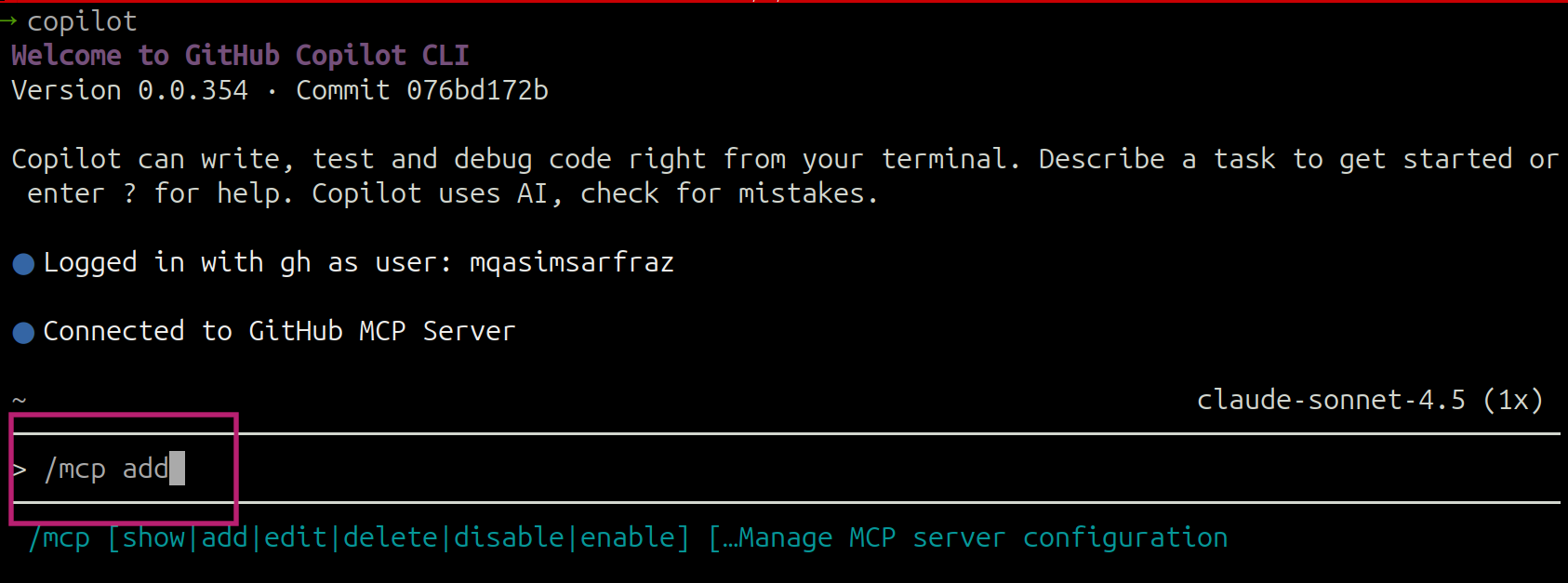
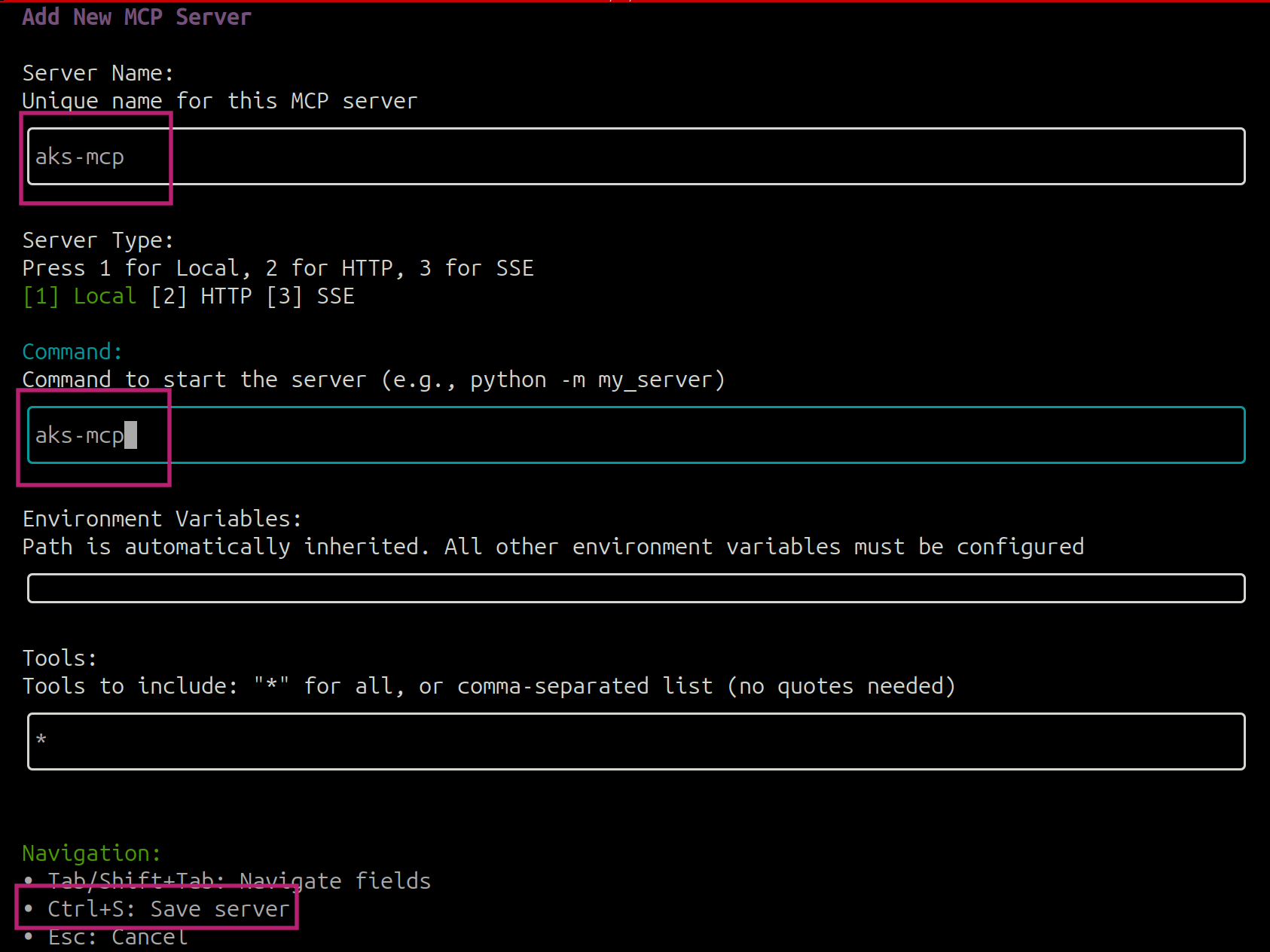
and configure the AKS-MCP Server by starting a copilot session (using copilot command) and use /mcp add command to add the AKS-MCP Server:
add the values as shown and hit Ctrl+S to save the changes:
Understanding AKS infrastructure and Kubernetes workloads
Now that the AKS-MCP Server and AI agent are configured, let's explore how to use them to understand your AKS infrastructure and Kubernetes workloads through natural language prompts.
- Agentic CLI for AKS
- GitHub Copilot CLI
Start an interactive session with the Agentic CLI for AKS:
az aks agent -g $RG_NAME -n $CLUSTER_NAME --namespace $NAMESPACE
You can use Agentic CLI in the client mode by using --mode client flag.
You should see the following output:
Loaded models: ['azure/gpt-4.1']
Refreshing available datasources (toolsets)
✅ Toolset core_investigation
✅ Toolset internet
✅ Toolset runbook
✅ Toolset aks_api
Toolset statuses are cached to /root/.aks-agent/toolsets_status.json
✅ Toolset core_investigation
✅ Toolset internet
✅ Toolset runbook
✅ Toolset aks_api
NO ENABLED LOGGING TOOLSET
Using model: azure/gpt-4.1 (1,047,576 total tokens, 32,768 output tokens)
This tool uses AI to generate responses and may not always be accurate.
Welcome to AKS AGENT: Type '/exit' to exit, '/help' for commands, '/feedback' to share your thoughts.
User:
You can use different slash commands to learn more about Agentic CLI functionality and available tools e.g /tools, /help, /show etc.
Understanding Kubernetes Workloads
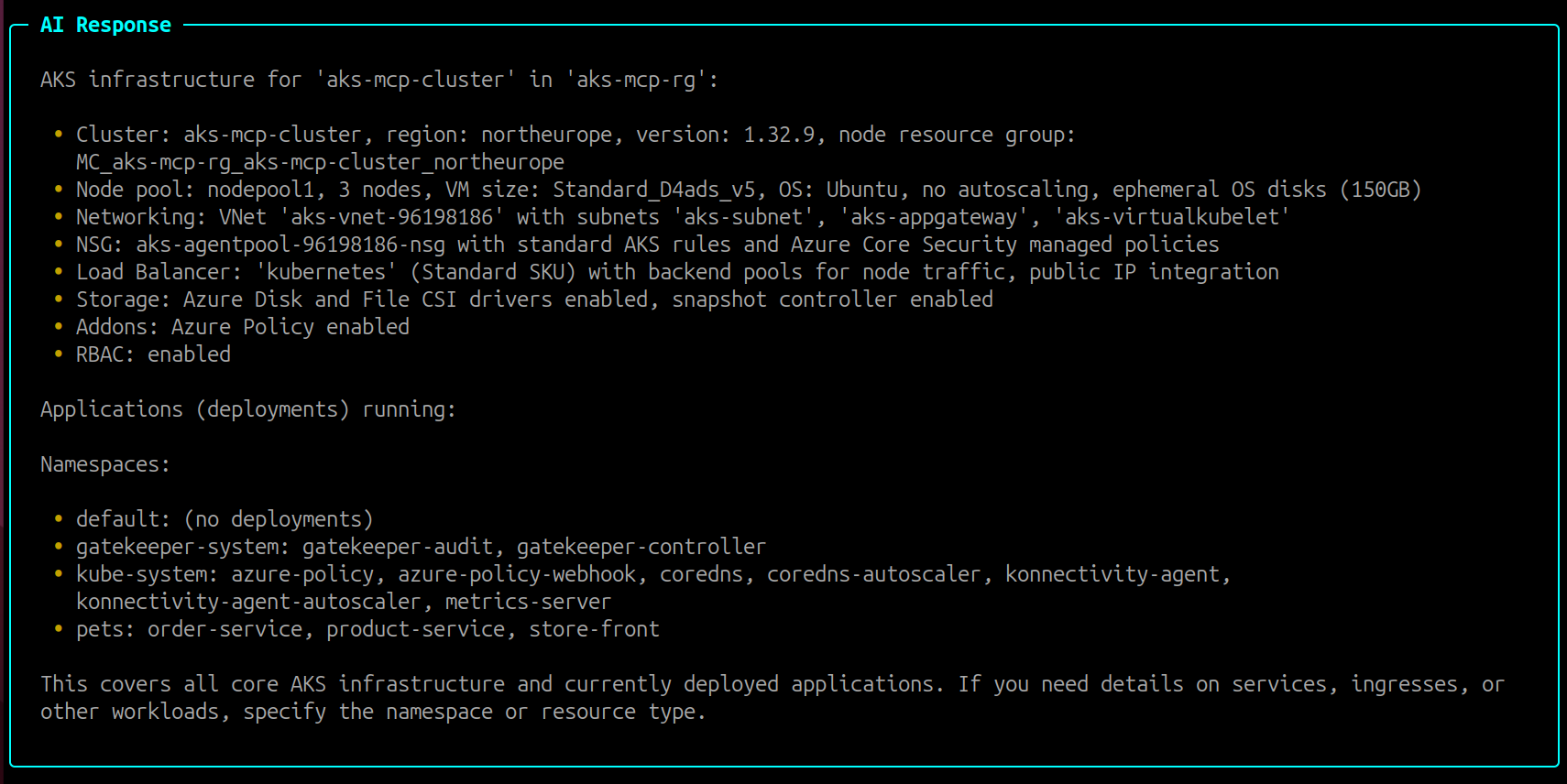
With the agent running, you can now use natural language prompts to explore your cluster. Let's start by asking the agent for an overview of the infrastructure and applications:
Prompt:
Can you help me understand all the applications and AKS infrastructure for 'aks-mcp-cluster' running in 'aks-mcp-rg'?
You can increase tokens per minute (TPM) in Microsoft Foundry if the agent needs to wait between tool calls.
The agent will come up with a plan to gather the required information and provide you with a detailed response about the AKS infrastructure and workloads running in the cluster:
Plan:
Task List:
+----+------------------------------------------------------------------------------------------------+-----------------+
| ID | Content                                                                                        | Status          |
+----+------------------------------------------------------------------------------------------------+-----------------+
| 1  | List all AKS cluster infrastructure components for 'aks-mcp-cluster' in 'aks-mcp-rg'.          | [~] in_progress |
| 2  | List all applications running in 'aks-mcp-cluster'.                                            | [~] in_progress |
| 3  | Verify findings and ensure all aspects of cluster infrastructure and applications are covered. | [ ] pending     |
+----+------------------------------------------------------------------------------------------------+-----------------+
After the agent finishes gathering the information, it comes back with the final response:
AI-Generated Response: The response may vary depending on factors such as the model used, version, and specific prompts.
Response:
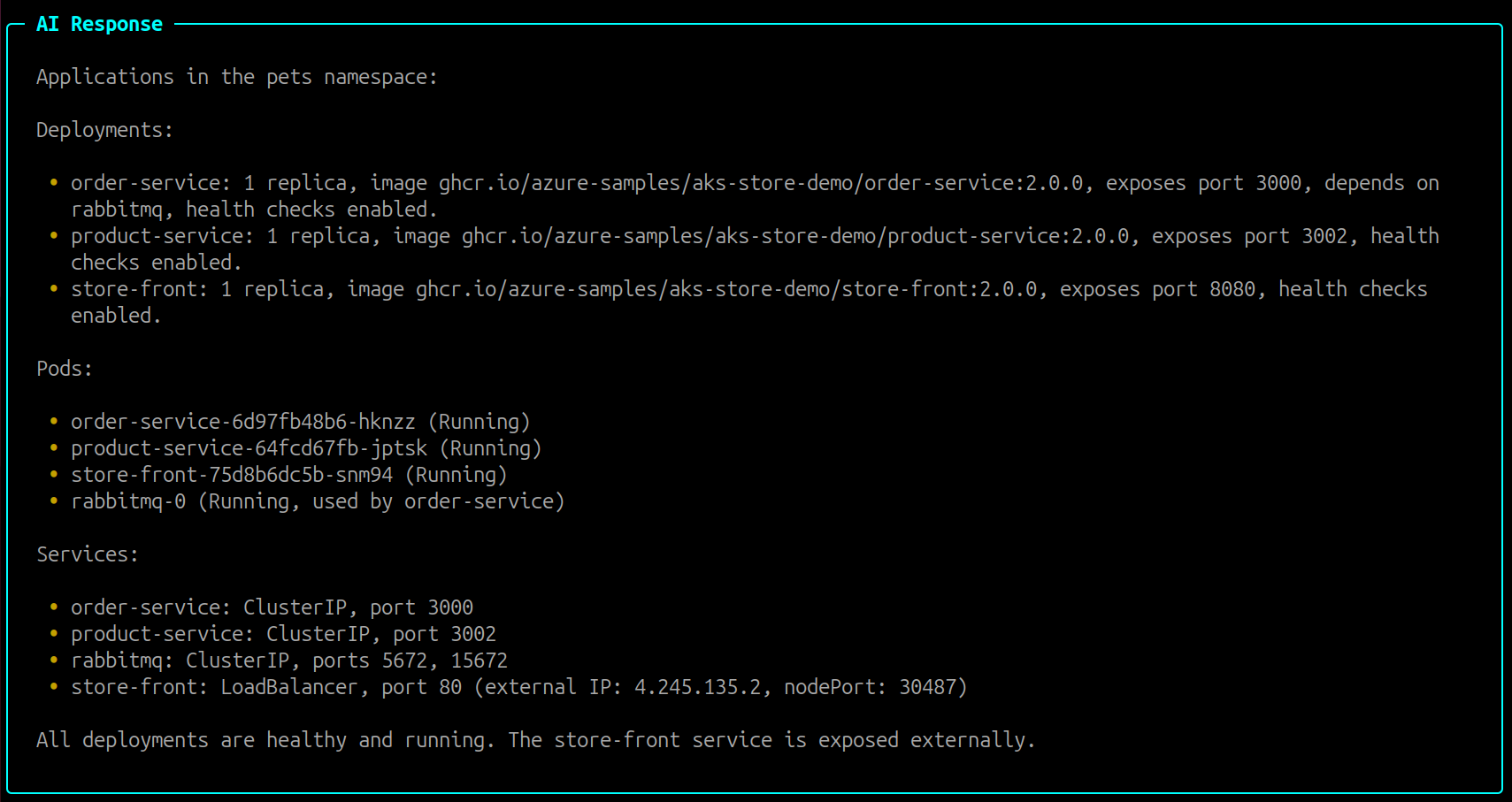
The agent supports follow-up questions, allowing you to dig deeper into specific areas. For example, try asking for more details about the pets namespace:
Prompt:
Can you provide more details about the applications running in 'pets' namespace?
AI-Generated Response: The response may vary depending on factors such as the model used, version, and specific prompts.
Response:
AKS infrastructure
Beyond Kubernetes workloads, the agent can also help you understand Azure-level infrastructure components. Let's explore some examples by asking about NSG rules and available upgrades:
Prompt
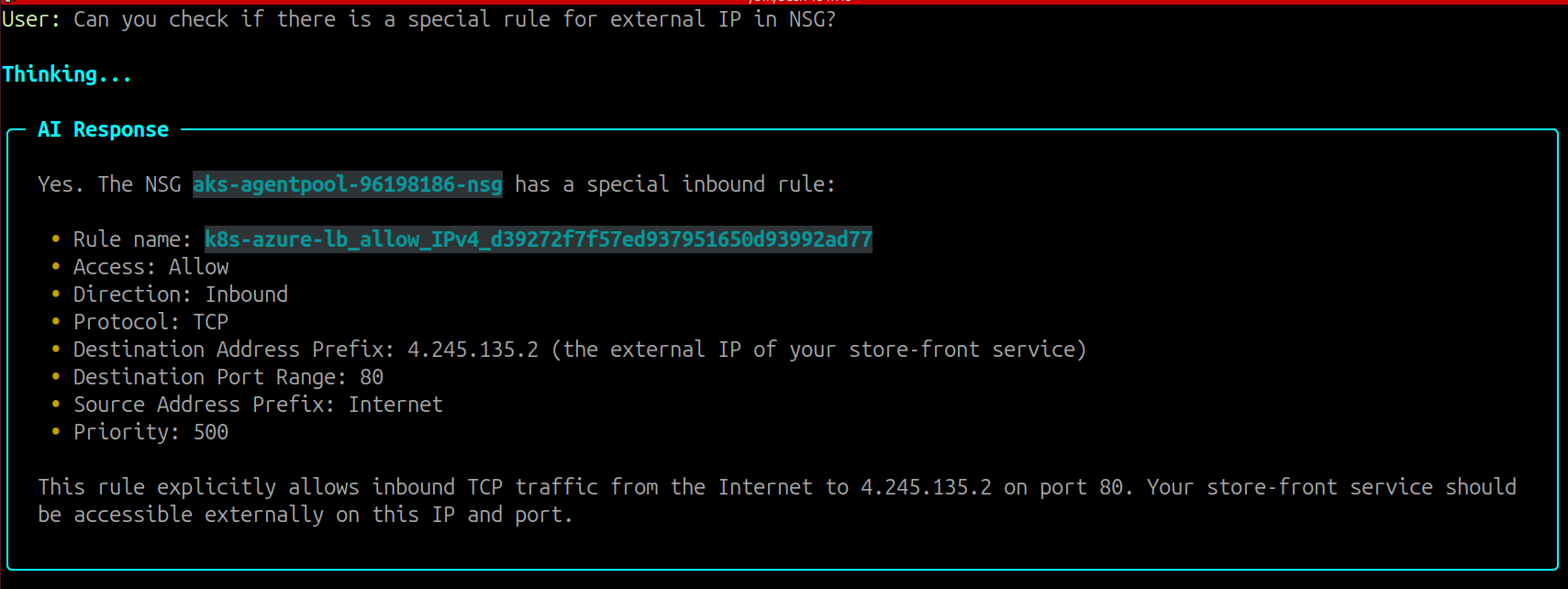
Can you check if there is a special rule for external IP in NSG?
AI-Generated Response: The response may vary depending on factors such as the model used, version, and specific prompts.
Response:
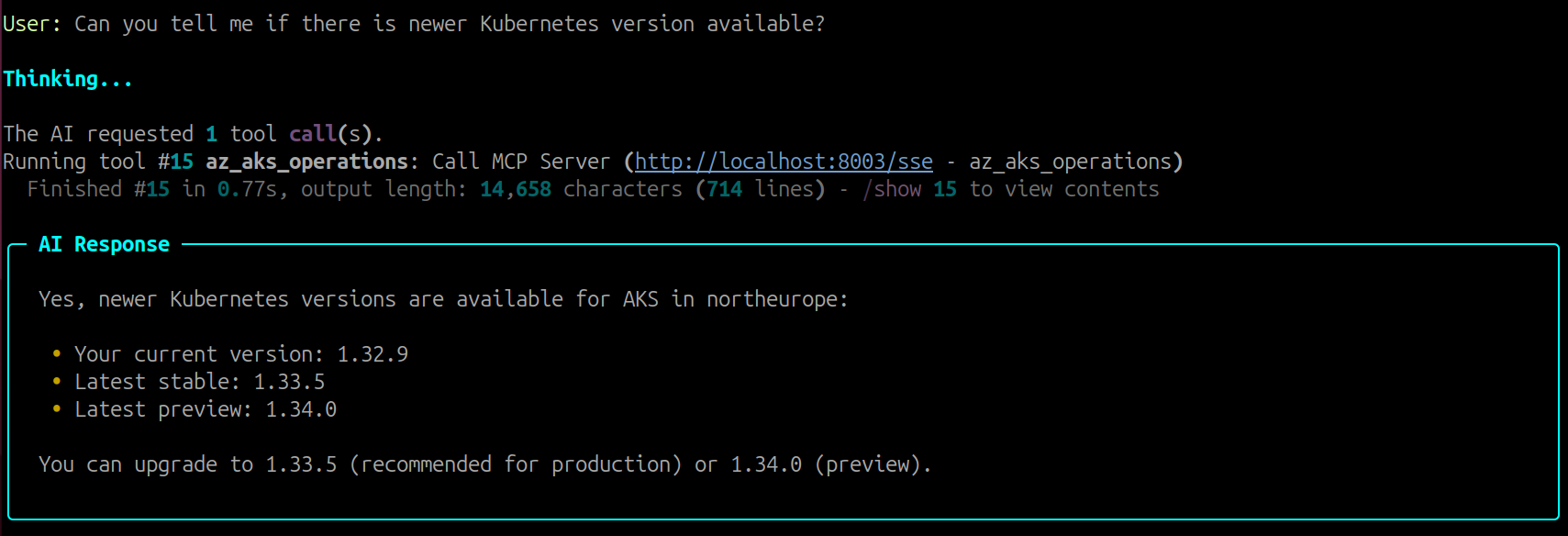
You can also check for available cluster upgrades:
Prompt:
Can you tell me if there is newer Kubernetes version available?
AI-Generated Response: The response may vary depending on factors such as the model used, version, and specific prompts.
Response:
Real-time Observability
Beyond querying static configurations, we can also get deeper insights about our applications using real-time observability built into AKS-MCP. Let's go through some examples:
Prerequisite: This feature requires Inspektor Gadget to be installed in your cluster. If you haven't already, complete Step 5: Enabling/Deploying Inspektor Gadget before proceeding.
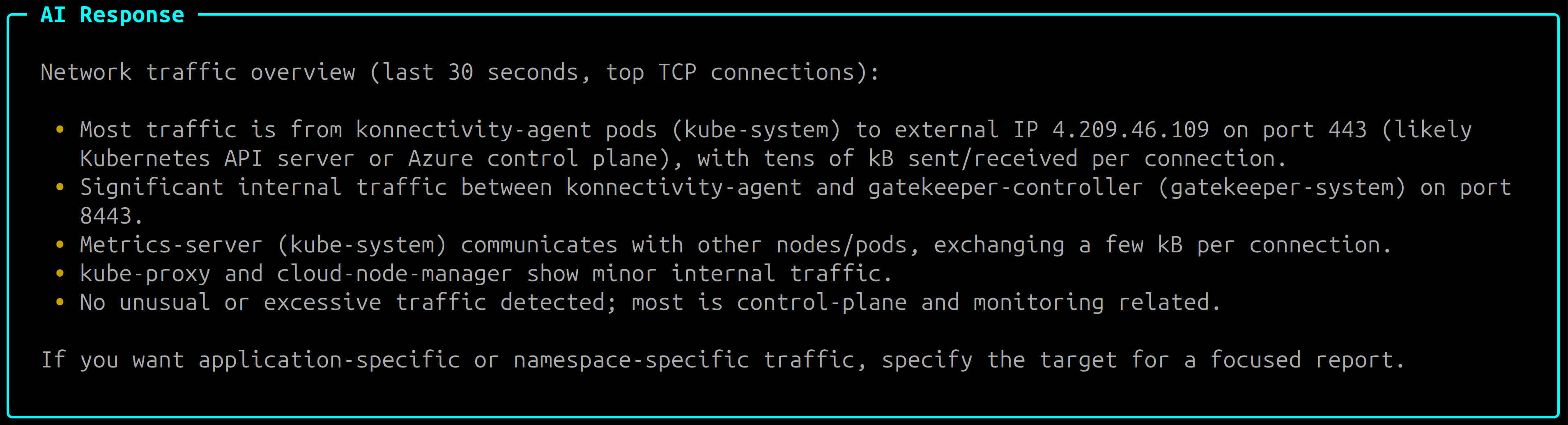
Prompt:
Can you give me overview of real-time network traffic in my cluster?
You can always be more explicit in your prompts by asking the agent to use specific tools e.g "use inspektor_gadget_observability for real-time observability".
AI-Generated Response: The response may vary depending on factors such as the model used, version, and specific prompts.
Task List:
+----+----------------------------------------------------------------------------+-----------------+
| ID | Content                                                                    | Status          |
+----+----------------------------------------------------------------------------+-----------------+
| 1  | Check available tools for network traffic and observability in the cluster | [~] in_progress |
| 2  | Gather summary of network traffic using available observability tools      | [ ] pending     |
| 3  | Summarize findings and provide network traffic overview                    | [ ] pending     |
+----+----------------------------------------------------------------------------+-----------------+
Response:
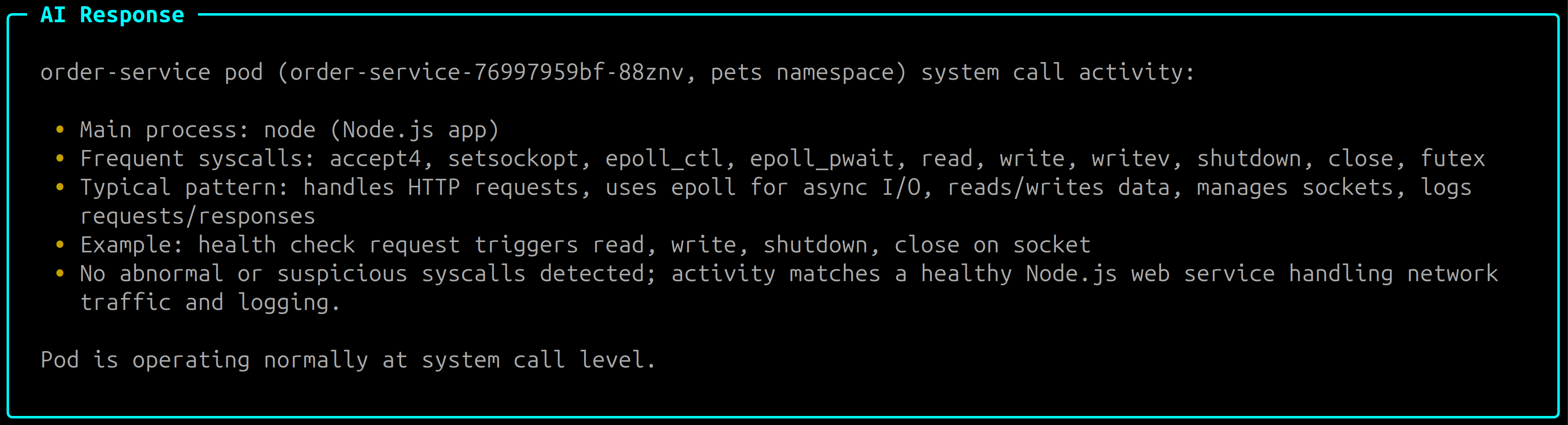
You can also drill down into specific pods for a more detailed analysis. Try examining the system calls made by a particular service:
Prompt:
Can you give me a detailed overview of order-service pod by examining the system calls?
AI-Generated Response: The response may vary depending on factors such as the model used, version, and specific prompts.
Task List:
+----+---------------------------------------------------------+-----------------+
| ID | Content                                                 | Status          |
+----+---------------------------------------------------------+-----------------+
| 1  | Find the pod name for order-service in 'pets' namespace | [~] in_progress |
| 2  | Run system call observability on order-service pod      | [ ] pending     |
| 3  | Summarize system call activity for order-service pod    | [ ] pending     |
+----+---------------------------------------------------------+-----------------+
Response:
You can use /exit to exit the current session. If you start a new session, the agent may ask about cluster/application details.
Start an interactive session with GitHub Copilot CLI:
copilot --allow-tool 'aks-mcp'
Understanding Kubernetes Workloads
With GitHub Copilot CLI running, you can use natural language prompts to explore your cluster. Let's start by asking for an overview of the infrastructure and applications:
Prompt:
Can you help me understand all the applications and AKS infrastructure for 'aks-mcp-cluster' running in 'aks-mcp-rg'?
AI-Generated Response: The response may vary depending on factors such as the model used, version, and specific prompts.
Response:
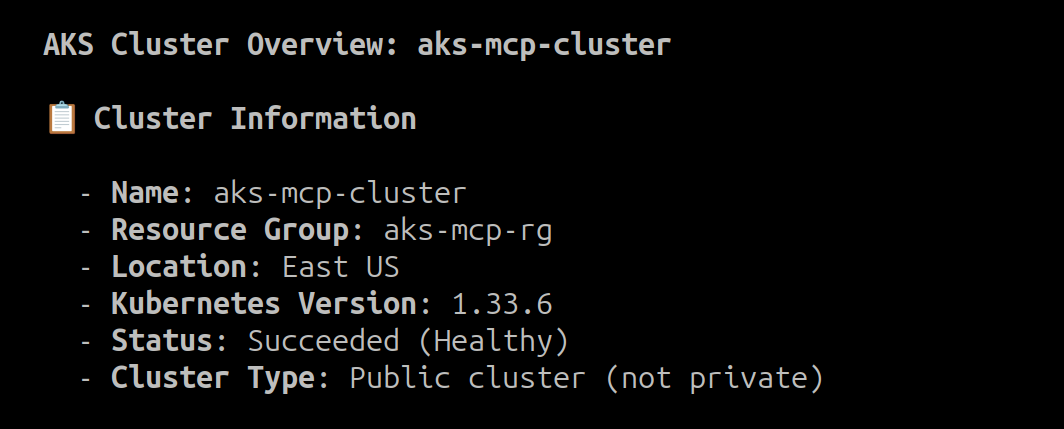
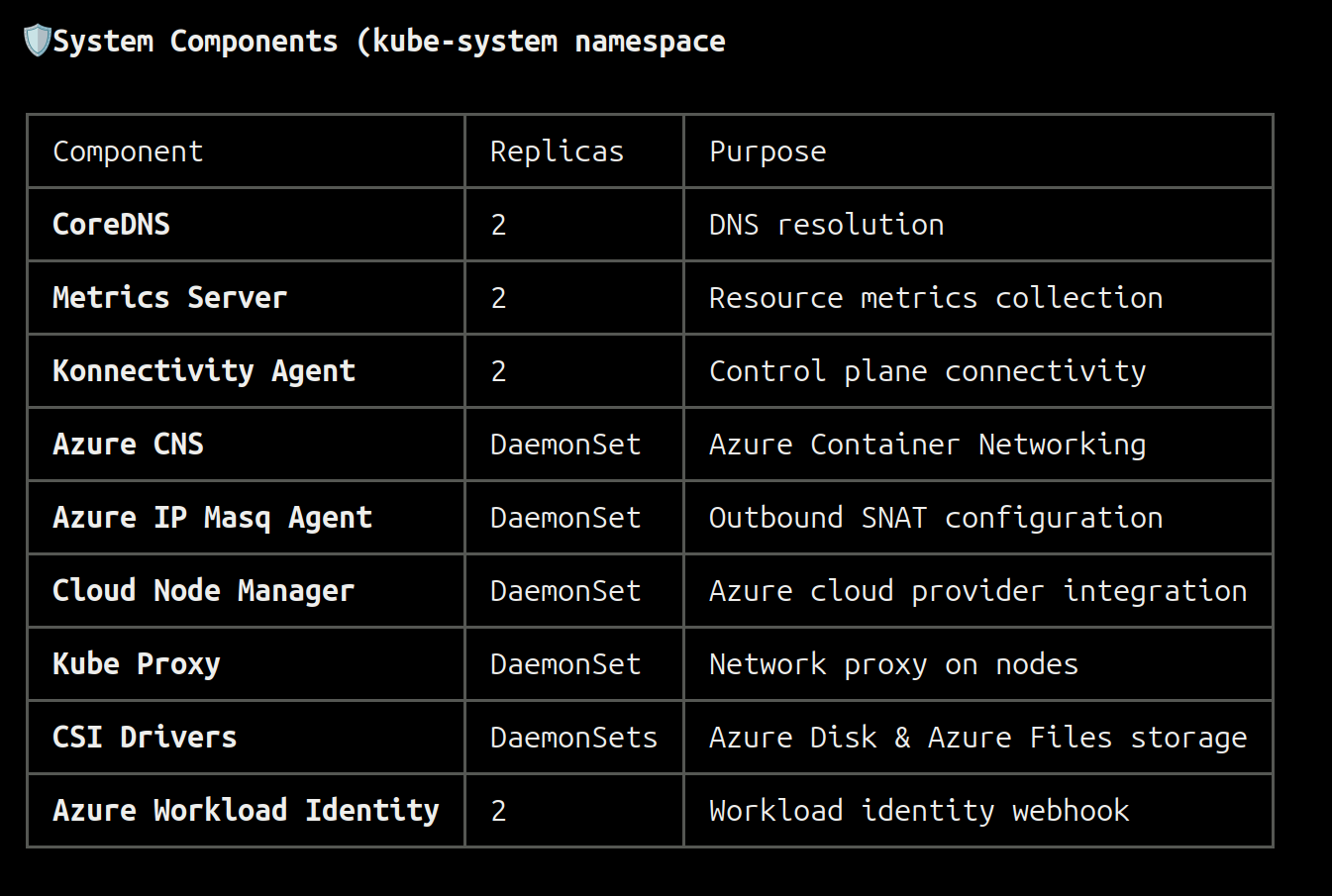
The agent supports follow-up questions, allowing you to dig deeper into specific areas:
Prompt:
Can you provide more details about the applications running in 'pets' namespace?
AI-Generated Response: The response may vary depending on factors such as the model used, version, and specific prompts.
Response:
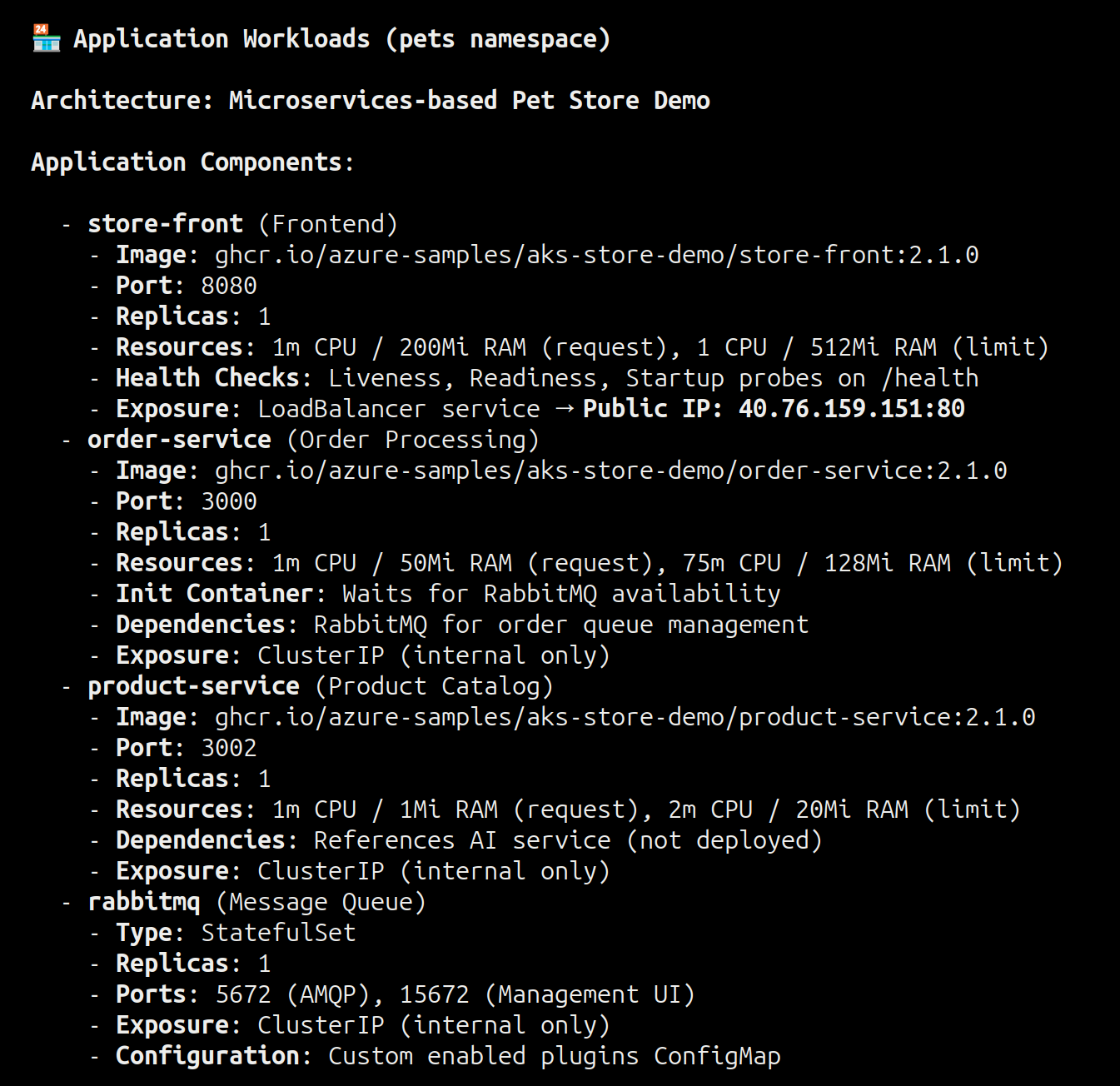
AKS infrastructure
Beyond Kubernetes workloads, you can also explore Azure-level infrastructure components:
Prompt:
Can you check if there is a special rule for external IP in NSG?
If you start a new session copilot might ask you to provide information about subscription, resource group, and cluster name.
AI-Generated Response: The response may vary depending on factors such as the model used, version, and specific prompts.
Response:
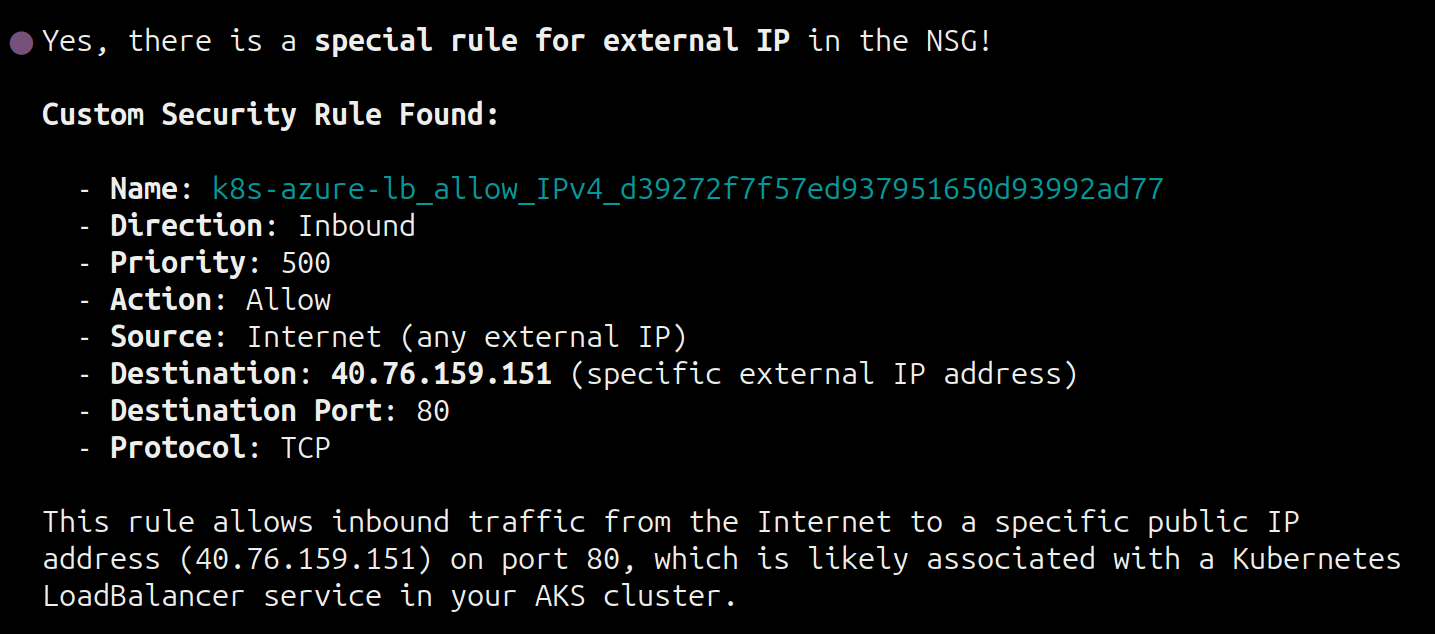
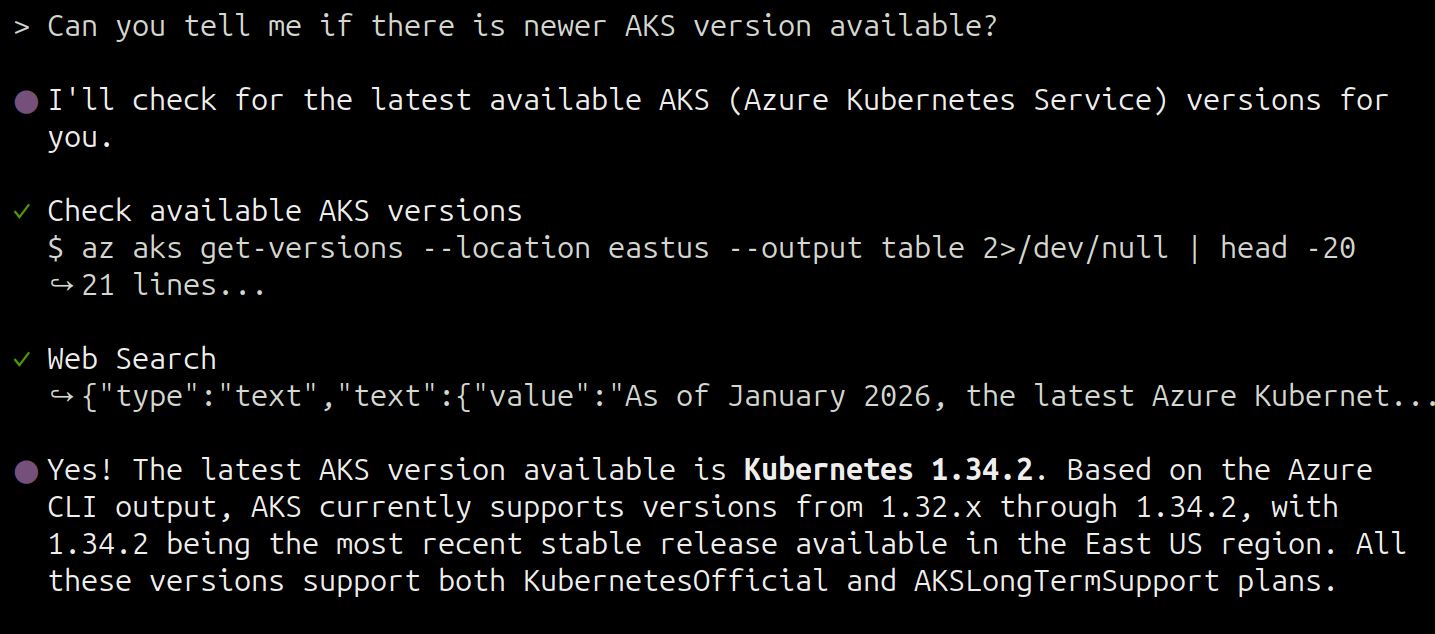
You can also check for available cluster upgrades:
Prompt:
Can you tell me if there is newer Kubernetes version available?
AI-Generated Response: The response may vary depending on factors such as the model used, version, and specific prompts.
Response:
Real-time Observability
Let's explore real-time observability capabilities:
This feature requires Inspektor Gadget to be installed in your cluster. GitHub Copilot CLI will automatically install it for you if it's not already installed.
Prompt:
Can you give me overview of real-time network traffic in my cluster?
You can always be more explicit in your prompts by asking the agent to use specific tools e.g "use inspektor_gadget_observability for real-time observability".
AI-Generated Response: The response may vary depending on factors such as the model used, version, and specific prompts.
Response:
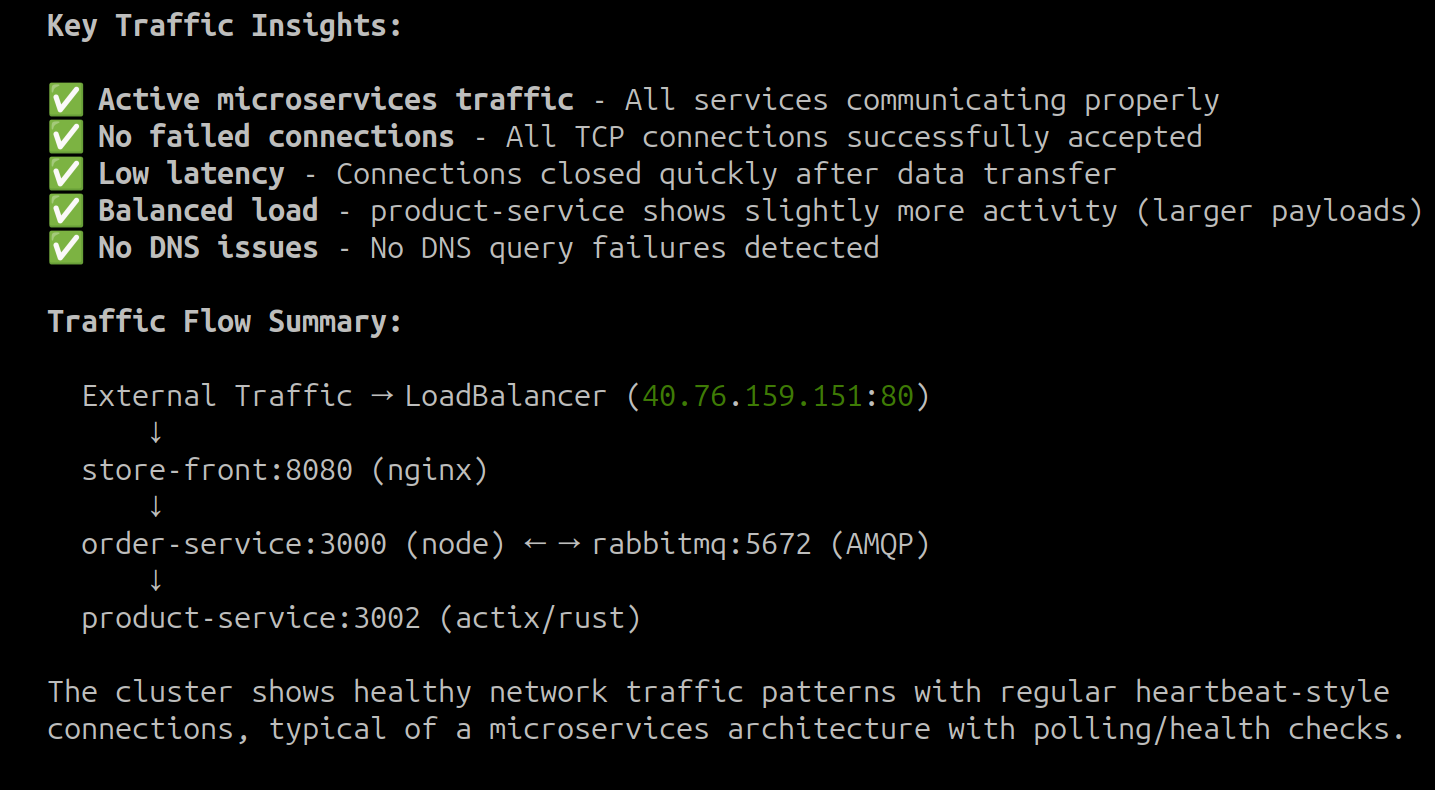
You can also drill down into specific pods:
Prompt:
Can you give me a detailed overview of order-service pod by examining the system calls?
AI-Generated Response: The response may vary depending on factors such as the model used, version, and specific prompts.
Response:
It comes back with a detailed analysis with part of response:

You can use /exit to exit the current session. If you start a new session, the agent may ask about cluster/application details.
Troubleshooting AKS infrastructure and clusters
Now that we've explored the agent's capabilities for understanding your cluster, let's put them to the test with a real troubleshooting scenario. We'll simulate a common infrastructure issue by adding an NSG rule that blocks HTTP traffic to our application.
First, get the managed resource group name and NSG name:
MANAGED_RG_NAME=$(az aks show --resource-group $RG_NAME --name $CLUSTER_NAME --query nodeResourceGroup -o tsv)
NSG_NAME=$(az network nsg list -g $MANAGED_RG_NAME --query "[0].name" -o tsv)
Next, add a deny rule with the highest priority to block incoming HTTP traffic to the frontend IP:
az network nsg rule create \
  --name block-external-ip --nsg-name $NSG_NAME \
  --priority 100 --resource-group $MANAGED_RG_NAME \
  --access deny --direction inbound \
  --protocol Tcp --source-address-prefixes Internet \
  --source-port-ranges '*' --destination-address-prefixes $FRONTEND_IP \
  --destination-port-ranges 80
Once the rule is added, accessing the external IP will result in a timeout:
curl --connect-timeout 5 http://$FRONTEND_IP
curl: (28) Failed to connect to 4.245.135.2 port 80 after 5002 ms: Timeout was reached
- Agentic CLI for AKS
- GitHub Copilot CLI
Now let's use the AI agent to troubleshoot the connectivity issue we just created. Start an interactive session with the Agentic CLI for AKS if you haven't already:
az aks agent -g $RG_NAME -n $CLUSTER_NAME --namespace $NAMESPACE
You can use Agentic CLI in the client mode by using --mode client flag.
Prompt:
I'm unable to access my application running in 'pets' namespace on 'aks-mcp-cluster' in 'aks-mcp-rg'. The external IP is timing out. Can you help me troubleshoot this issue?
The agent will analyze the situation and come up with a troubleshooting plan:
Plan:
Task List:
+----+-----------------------------------------------------------------------------------------------+-----------------+
| ID | Content                                                                                       | Status          |
+----+-----------------------------------------------------------------------------------------------+-----------------+
| 1  | Check AKS cluster health and context for 'aks-mcp-cluster' in 'aks-mcp-rg'.                   | [~] in_progress |
| 2  | Identify application service(s) in 'pets' namespace and check their external IPs and status.  | [ ] pending     |
| 3  | Check network resources (load balancer, NSG, subnet) for issues related to external access.   | [ ] pending     |
| 4  | Check application pod status and events in 'pets' namespace for runtime or scheduling issues. | [ ] pending     |
| 5  | Final review and verification of findings.                                                    | [ ] pending     |
+----+-----------------------------------------------------------------------------------------------+-----------------+
AI-Generated Response: The response may vary depending on factors such as the model used, version, and specific prompts.
Response:
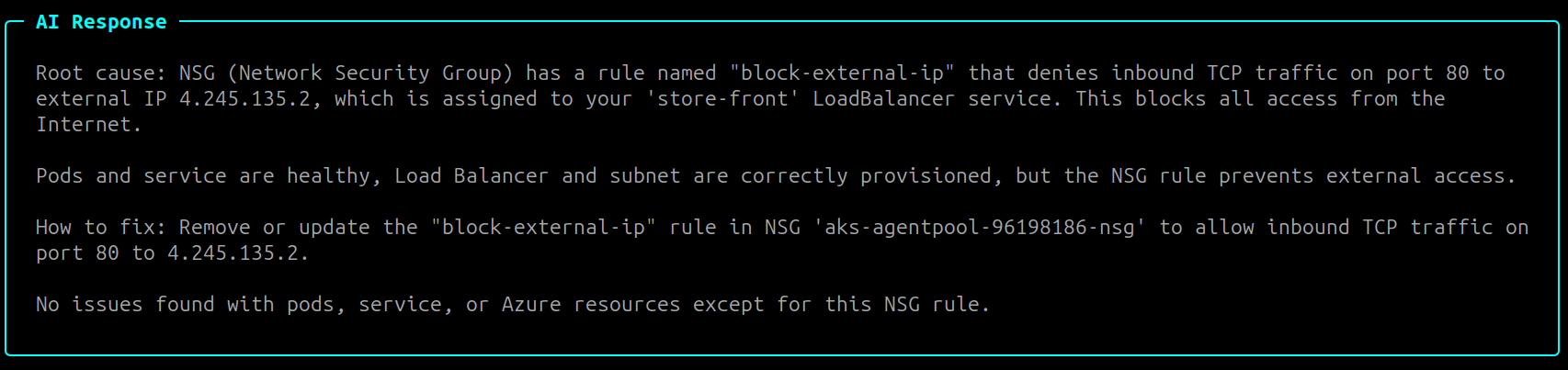
The agent should identify the NSG rule blocking traffic. Let's ask it to help us fix the issue:
Prompt:
Can you help me remove the blocking rule to restore connectivity?
AI-Generated Response: The response may vary depending on factors such as the model used, version, and specific prompts.
Response:
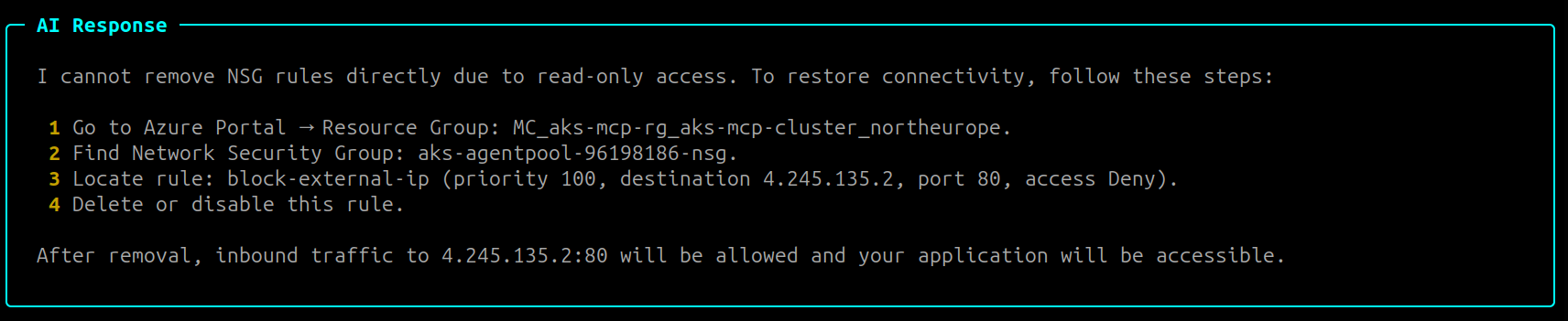
You can use /exit to exit the current session. If you start a new session, the agent may ask about cluster/application details.
After performing the steps provided by the agent, you should be able to access the application again:
You can also use az CLI to delete the NSG rule using the following command:
az network nsg rule delete --nsg-name $NSG_NAME --resource-group $MANAGED_RG_NAME --name block-external-ip
curl http://$FRONTEND_IP
The AI agent can help identify and troubleshoot various infrastructure issues including:
- NSG rules blocking traffic
- DNS resolution problems
- Load balancer misconfigurations
- Node-level networking issues
Now let's use GitHub Copilot CLI to troubleshoot the connectivity issue. Start an interactive session if you haven't already:
copilot --allow-tool 'aks-mcp'
Prompt:
I'm unable to access my application running in 'pets' namespace on 'aks-mcp-cluster' in 'aks-mcp-rg'. The external IP is timing out. Can you help me troubleshoot this issue?
AI-Generated Response: The response may vary depending on factors such as the model used, version, and specific prompts.
Response:
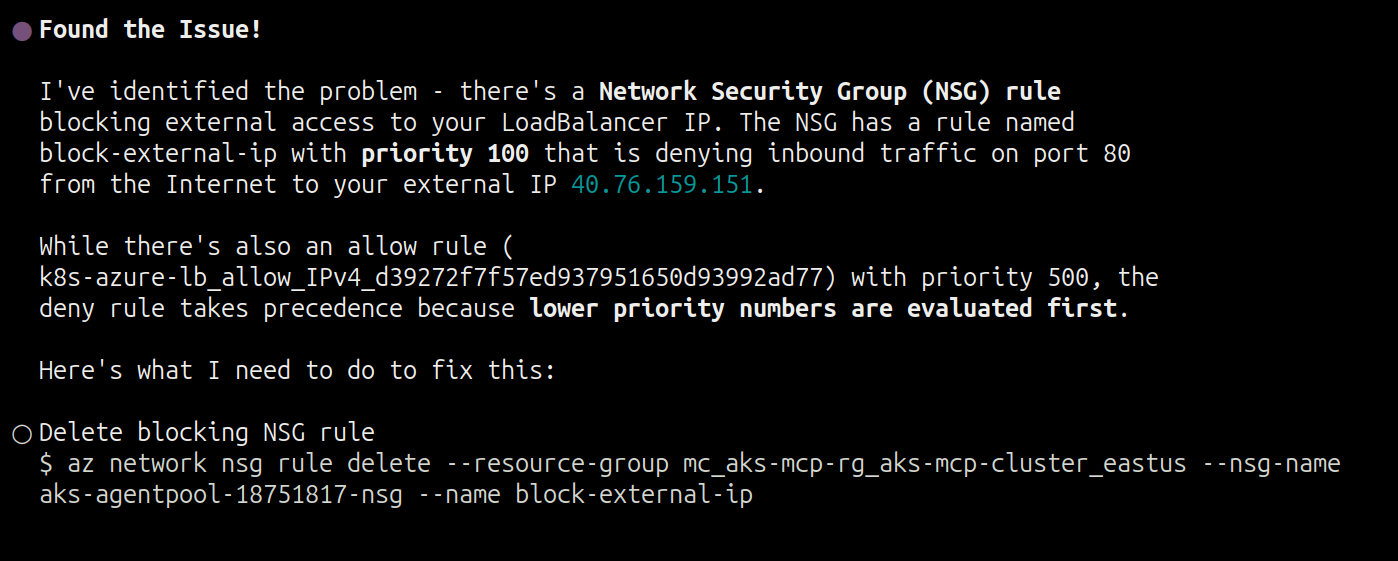
The agent should identify the NSG rule blocking traffic. We can ask if it can fix the issue:
AI-Generated Response: The response may vary depending on factors such as the model used, version, and specific prompts.
Response:
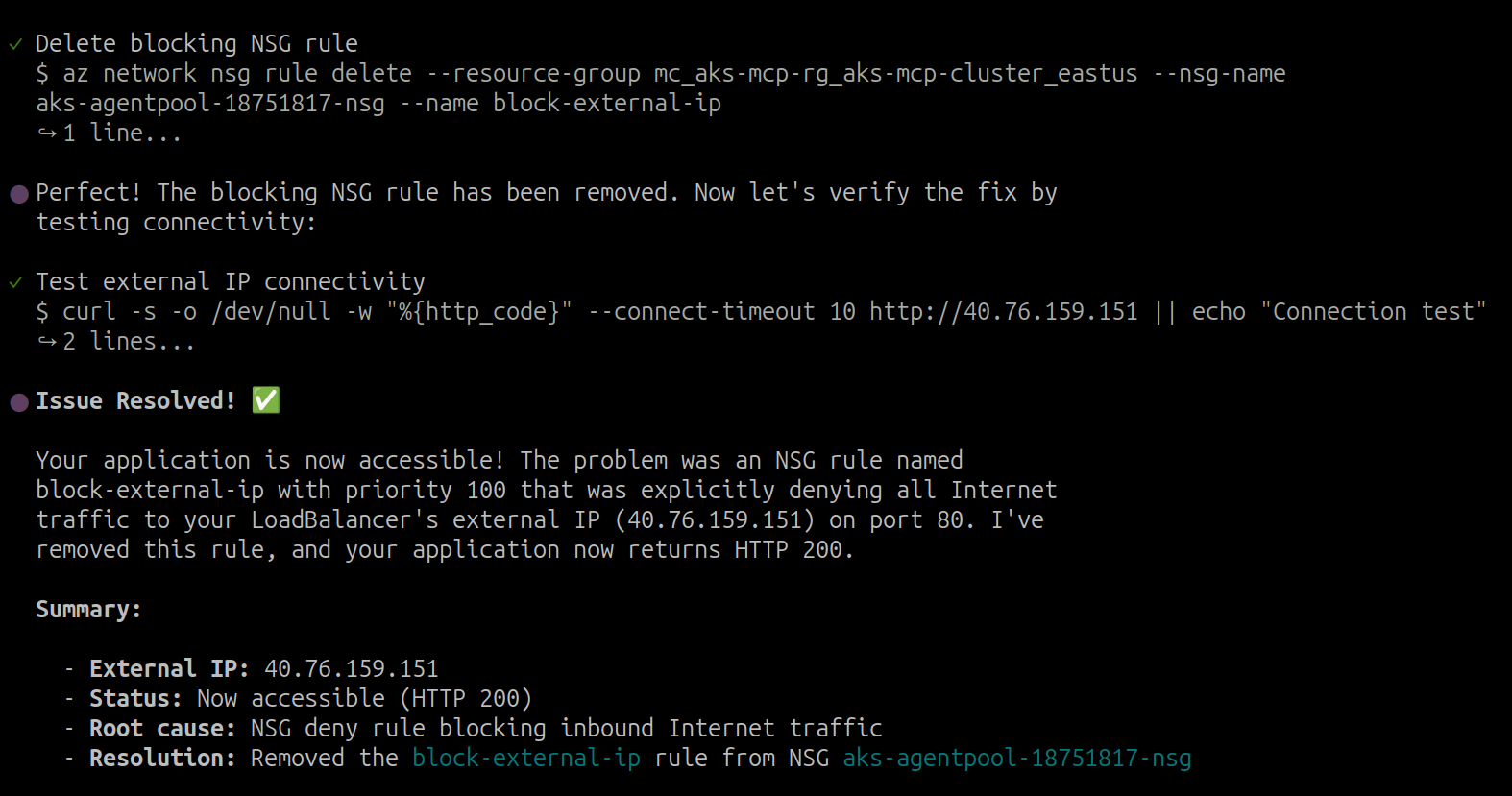
You can use /exit to exit the current session. If you start a new session, the agent may ask about cluster/application details.
After performing the steps provided by the agent, you should be able to access the application again:
curl http://$FRONTEND_IP
The AI agent can help identify and troubleshoot various infrastructure issues including:
- NSG rules blocking traffic
- DNS resolution problems
- Load balancer misconfigurations
- Node-level networking issues
Troubleshooting Kubernetes workloads and applications
Having successfully diagnosed an infrastructure-level issue, let's now shift focus to application-layer problems. To simulate a common misconfiguration, we'll change the target port for the order-service to an incorrect value.
First, let's break the order-service by changing its service target port:
kubectl patch service order-service -n pets --type='json' -p='[{"op": "replace", "path": "/spec/ports/0/targetPort", "value": 9999}]'
This will cause the service to forward traffic to port 9999 instead of the correct port 3000, breaking connectivity to the order service.
Verify the misconfiguration is in place by sending a request that will fail:
curl -X POST http://$FRONTEND_IP/api/orders \
     -H "Content-Type: application/json" \
     -d '{"customerId":"3798750450","items":[{"productId":2,"quantity":1,"price":6.99}]}'
You should see an nginx error indicating the service is unavailable:
<!DOCTYPE html>
<html>
<head>
<title>Error</title>
<style>
html { color-scheme: light dark; }
body { width: 35em; margin: 0 auto;
font-family: Tahoma, Verdana, Arial, sans-serif; }
</style>
</head>
<body>
<h1>An error occurred.</h1>
<p>Sorry, the page you are looking for is currently unavailable.<br/>
Please try again later.</p>
<p>If you are the system administrator of this resource then you should check
the error log for details.</p>
<p><em>Faithfully yours, nginx.</em></p>
</body>
</html>
- Agentic CLI for AKS
- GitHub Copilot CLI
Now let's use the AI agent to troubleshoot the application issue. Start an interactive session with the Agentic CLI for AKS if you haven't already:
az aks agent -g $RG_NAME -n $CLUSTER_NAME --namespace $NAMESPACE
Prompt:
I'm experiencing issues with the order-service in the 'pets' namespace on 'aks-mcp-cluster' in 'aks-mcp-rg'. When I try to POST to the /api/orders endpoint, I get an nginx error page saying "the page you are looking for is currently unavailable". The store-front service seems to be running fine, but it cannot communicate with order-service. Can you help me diagnose what's wrong with the service connectivity?
The agent will analyze the situation and come up with a troubleshooting plan:
Plan:
Task List:
+----+------------------------------------------------------------------------------------------------+-----------------+
| ID | Content                                                                                        | Status          |
+----+------------------------------------------------------------------------------------------------+-----------------+
| 1  | Check the order-service pod status and logs in 'pets' namespace.                              | [~] in_progress |
| 2  | Verify the order-service service configuration and endpoints.                                 | [ ] pending     |
| 3  | Test connectivity to the order-service from other pods.                                       | [ ] pending     |
| 4  | Analyze findings and provide recommendations to fix the connectivity issue.                   | [ ] pending     |
+----+------------------------------------------------------------------------------------------------+-----------------+
AI-Generated Response: The response may vary depending on factors such as the model used, version, and specific prompts.
Response:
The agent should identify the incorrect target port configuration.
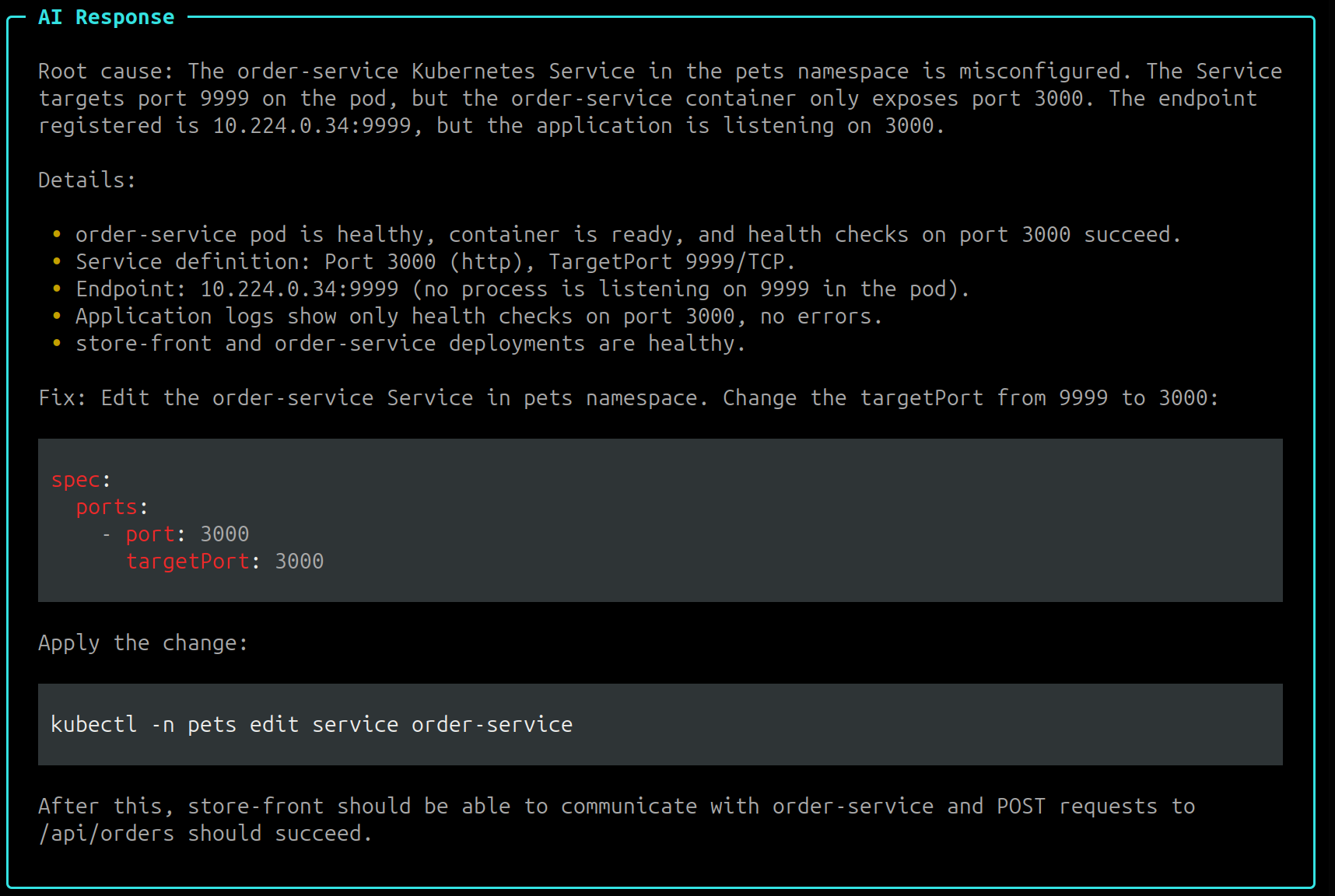
After performing the steps provided by the agent, verify that the service is working correctly:
You can also manually fix the target port using kubectl:
kubectl patch service order-service -n pets --type='json' -p='[{{"op": "replace", "path": "/spec/ports/0/targetPort", "value": 3000}}]'
Finally, you can also use the agent to monitor for DNS resolution issues in the cluster. Try asking the agent to help with DNS monitoring:
Prerequisite: This feature requires Inspektor Gadget to be installed in your cluster. If you haven't already, complete Step 5: Enabling/Deploying Inspektor Gadget before proceeding.
Prompt:
Can you help me observe DNS resolution issues in real-time for 30 seconds? I'm seeing slow DNS requests or errors.
AI-Generated Response: The response may vary depending on factors such as the model used, version, and specific prompts.
Response:
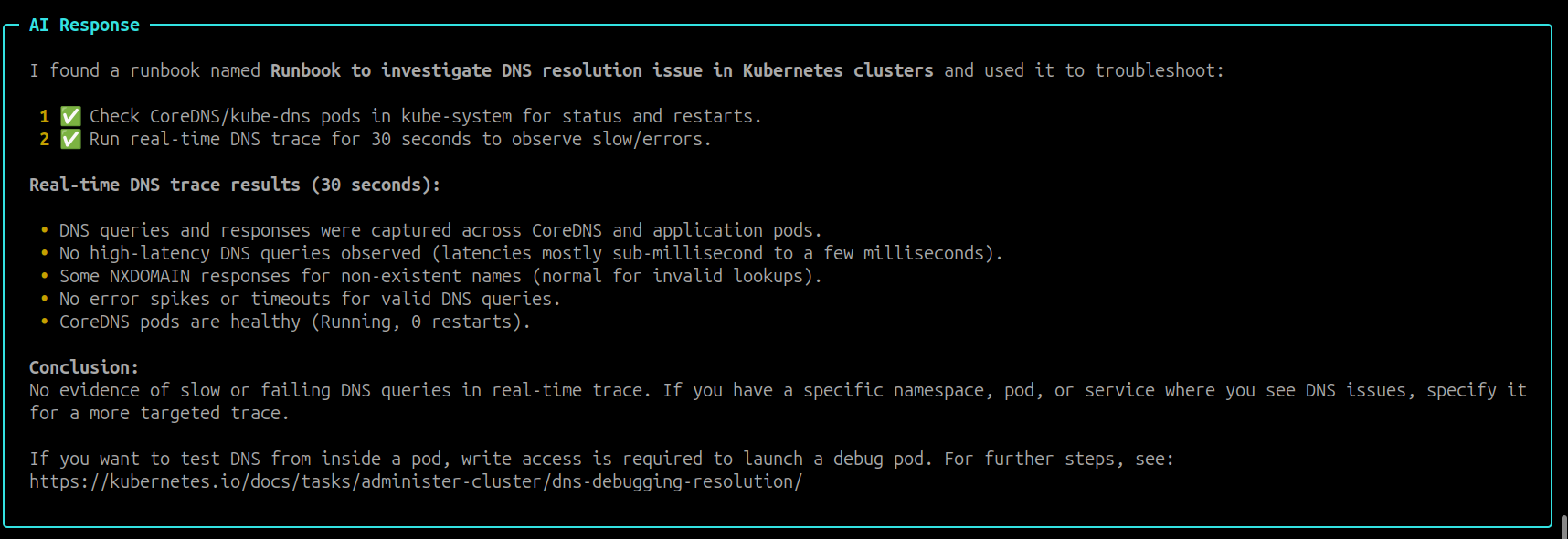
You can use /exit to exit the current session. If you start a new session, the agent may ask about cluster/application details.
Now let's use GitHub Copilot CLI to troubleshoot the application issue. Start an interactive session if you haven't already:
copilot --allow-tool 'aks-mcp'
Prompt:
I'm experiencing issues with the order-service in the 'pets' namespace on 'aks-mcp-cluster' in 'aks-mcp-rg'. When I try to POST to the /api/orders endpoint, I get an nginx error page saying "the page you are looking for is currently unavailable". The store-front service seems to be running fine, but it cannot communicate with order-service. Can you help me diagnose what's wrong with the service connectivity?
AI-Generated Response: The response may vary depending on factors such as the model used, version, and specific prompts.
Response:
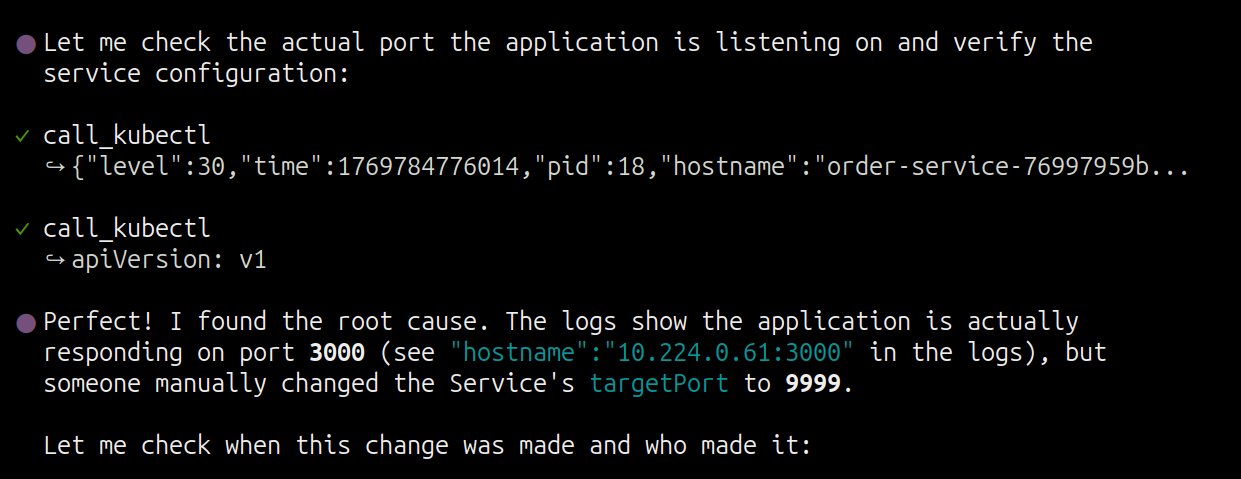
The agent should identify the incorrect target port configuration.
After performing the steps provided by the agent, verify that the service is working correctly.
Finally, you can also use the agent to monitor for DNS resolution issues in the cluster:
This feature requires Inspektor Gadget to be installed in your cluster. GitHub Copilot CLI will automatically install it for you if it's not already installed.
Prompt:
Can you help me observe DNS resolution issues in real-time for 30 seconds? I'm seeing slow DNS requests or errors.
AI-Generated Response: The response may vary depending on factors such as the model used, version, and specific prompts.
Response:
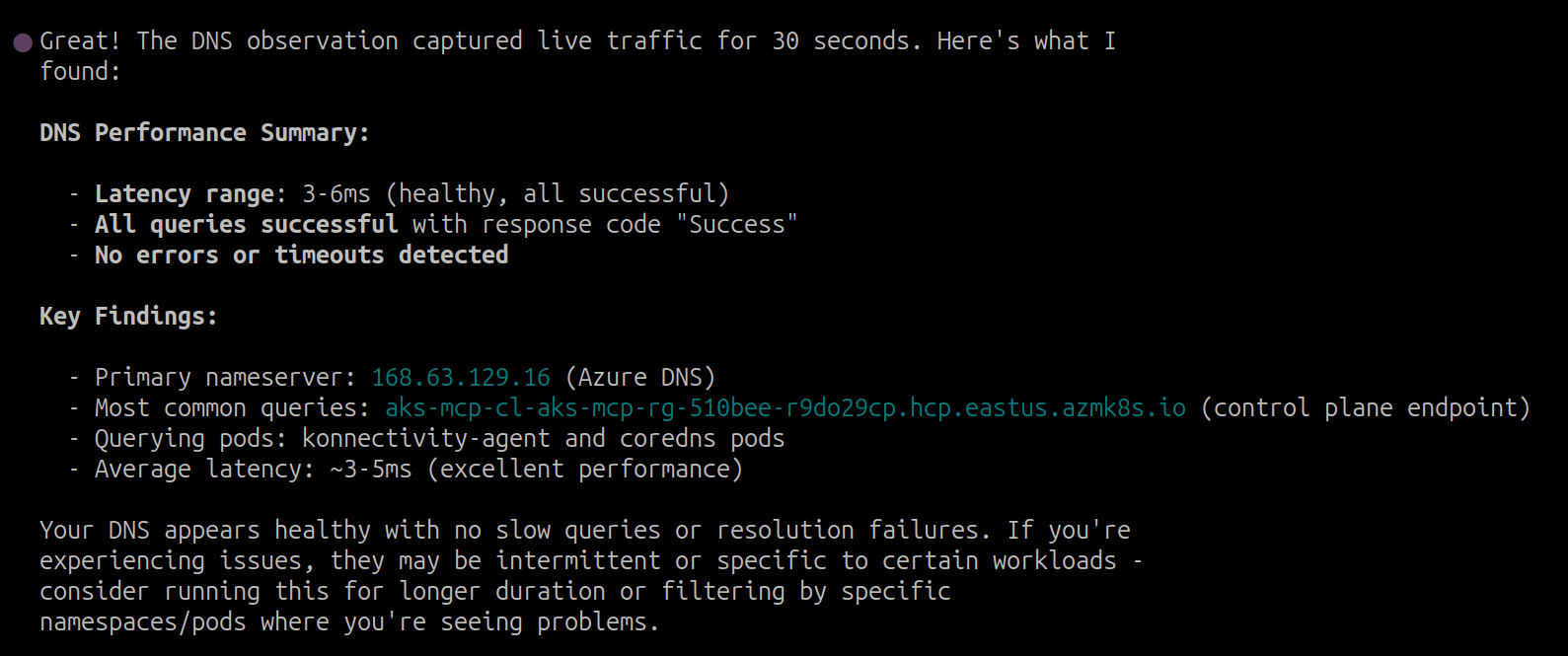
You can use /exit to exit the current session. If you start a new session, the agent may ask about cluster/application details.
Summary
Congratulations! You've completed this workshop and learned how the AKS-MCP Server serves as a powerful building block for AI-powered Kubernetes operations. Throughout this lab, you:
- Configured AI agents (Agentic CLI for AKS, GitHub Copilot CLI) with the AKS-MCP Server
- Troubleshot AKS infrastructure including NSG rules, networking, and cluster configurations
- Debugged Kubernetes workloads by identifying service misconfigurations and connectivity issues
- Leveraged real-time observability using Inspektor Gadget for deeper insights into pod behavior and network traffic
This workshop only scratched the surface of what's possible with AI-powered Kubernetes management. We encourage you to continue exploring the AKS-MCP Server capabilities and integrate them into your own operational workflows!
Cleanup
To avoid incurring unnecessary charges, remember to delete your resources when you're done:
az group delete --name $RG_NAME --yes --no-wait
Additional Resources
- AKS-MCP Server
- Agentic CLI for AKS
- GitHub Copilot CLI
- Leveraging Real-Time insights via the AKS-MCP Server
- Model Context Protocol (MCP)
- Inspektor Gadget
Authors
This lab was originally developed by Qasim Sarfraz. He can be reached at:
BlueSky @mqasimsarfraz.com
LinkedIn: Qasim Sarfraz