Step 7: Explore MCP Tools in GitHub Copilot (Local Endpoint)
Now, connect GitHub Copilot Chat to your locally running Function App's MCP endpoint to test the tools you implemented.
-
Verify MCP Server Configuration:
- In VS Code, open the .vscode/mcp.json file
- You should see the local-snippy server already configured
- If you see a "Running" status with tools count (e.g., "✓ Running | Stop | Restart | 5 tools"), the server is already connected
-
If not connected, select the Start button in the file (appears at the top of the JSON configuration)
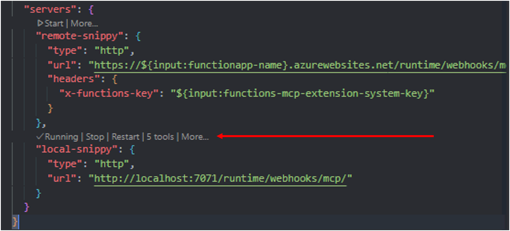
-
View MCP Server Logs (optional but helpful):
- Open the Command Palette by selecting Ctrl+Shift+P (Windows/Linux) or Cmd+Shift+P (macOS) or View > Command Palette from the toolbar
- Enter and select
MCP: List Servers - Select the local-snippy server from the dropdown
- Select Show Output to see the server logs
- Tip: Select the settings icon next to "MCP: local-snippy" in the output panel to change log level to "trace" for more detailed logs
-
Open GitHub Copilot Chat:
- Select Ctrl+Alt+I (Windows/Linux) or Cmd+Alt+I (macOS) or select the Copilot Chat icon in the Activity Bar
-
Configure Copilot Chat for Tools:
-
Ensure Agent mode is active (select from the dropdown next to the model selector, or Ctrl+. / Cmd+.)
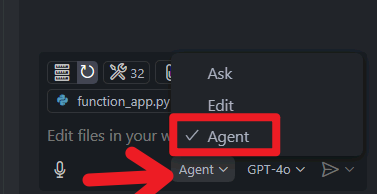
-
At the bottom of the chat panel, select the Tools icon
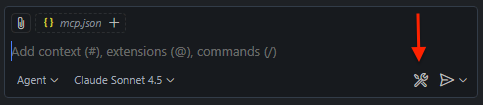
-
Make sure MCP Server: local-snippy and all its tools are checked
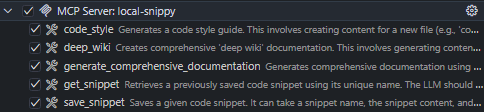
-
Select Escape or select OK to confirm your selection
Troubleshooting MCP Server Connection Issues
If you're unable to connect to MCP servers, you may be encountering one of these issues:
Issue 1: Cache-related problems
To resolve cache issues:
- Open VS Code command palette (Ctrl+Shift+P or Cmd+Shift+P).
- Enter
MCP Tools: Reset Cached Toolsto execute the command.
Issue 2: Organization policy restrictions
If your GitHub Enterprise organization has disabled MCP servers via policies, you have two options:
Option A: Use a different GitHub account that isn't subject to the same restrictions
Option B: Use the MCP Inspector tool
- Run the inspector locally:
npx @modelcontextprotocol/inspector. - Open your browser and navigate to
http://localhost:6274. - Test your MCP tools from this local interface.
These workarounds will let you complete the tutorial exercises even if organizational policies restrict direct MCP server access.
-
-
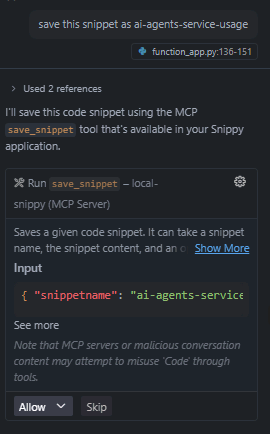
Test the save_snippet Tool:
- Open any code file (e.g., src/durable_agents.py)
- Select some interesting code sections (or it'll take the entire file as a snippet, which is fine, as well)
-
In Copilot Chat, enter:
Press Enter or Send - If prompted by Copilot to use the save_snippet tool, select Allow
-
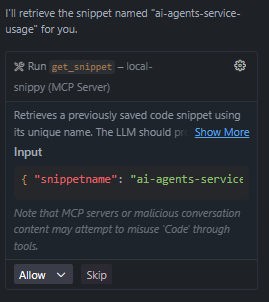
Test the get_snippet Tool:
-
In Copilot Chat, enter:
Press Enter or Send - Copilot will suggest using the get_snippet tool - Select Allow
-
-
Experiment with Advanced AI Agent Tools:
-
Try these prompts (no need to select code first):
-
generate a deep wiki for all snippets and place in a new file deep-wiki.md in project root(uses the deep_wiki tool) -
create a code style guide based on the saved snippets and place in a new file code-style.md in project root(uses the code_style tool)
-
Note: These agent-based tools may take a minute to run as they orchestrate with configured tools and have self-reflection
Once they are done, open the files and Preview the generated Markdown (Ctrl+K V or Cmd+K V)
-
-
Check Function Logs:
- In the terminal where
func startis running, you'll see logs for each tool invocation - This confirms your MCP tools are working end-to-end
- In the terminal where
The ability to interact with your tools through natural language in Copilot demonstrates the power of the MCP protocol - AI assistants can seamlessly discover and use your Azure Functions without any custom integration code.